AT878Sync app icon

AT878Sync

Program your AnyTone AT-878 from your phone or tablet. Plug in the cable you already have and edit your channels, zones, and scan lists right there, no computer needed.

On-device only, no cloud Built for ham radio operators In active development
Early build, not yet released. Reading and writing already work on a real radio. Everything on this page is working today. If it isn't done yet, I say so.

If you own an AT-878, you know the routine: find the Windows laptop, dig out the cable, open the CPS, and hope you remember where everything is. I wanted to do it from the couch, or from the truck at field day. So I built AT878Sync (project name CHIRP-Go). Plug the same USB programming cable into your phone or tablet with an OTG adapter and you're in. Heard about a repeater you want to try? Look it up on RepeaterBook and add it with a tap instead of typing frequencies in by hand.

Connect

Plug in and go

Connect the radio and AT878Sync finds it on its own. Say yes to USB access and you're talking to your radio. There's no driver to hunt down. One Read brings in everything: channels, zones, scan lists, talkgroups, roaming, and radio settings. When you're done, one Write sends it all back, after you give the OK.
Channels

All your channels, laid out the way you want

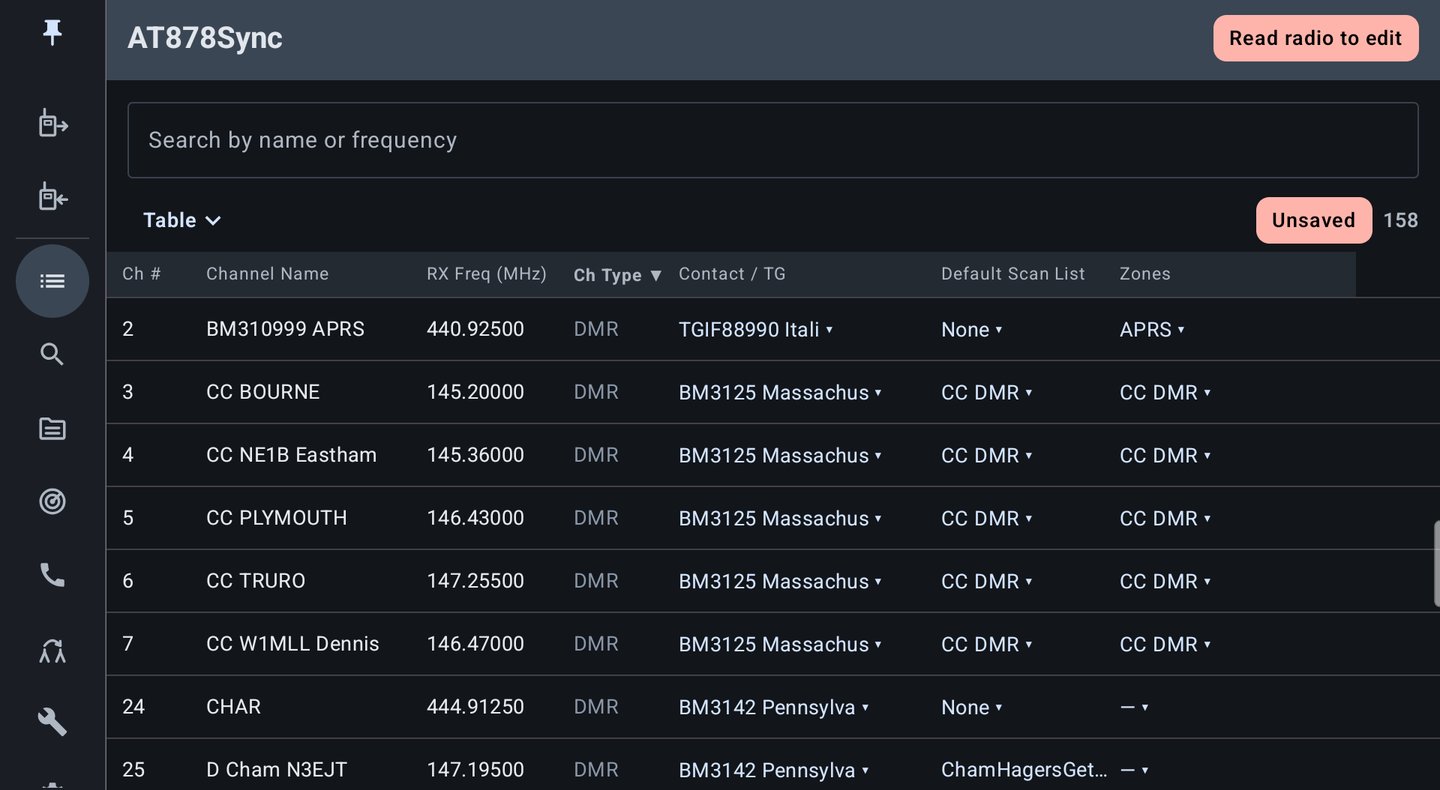
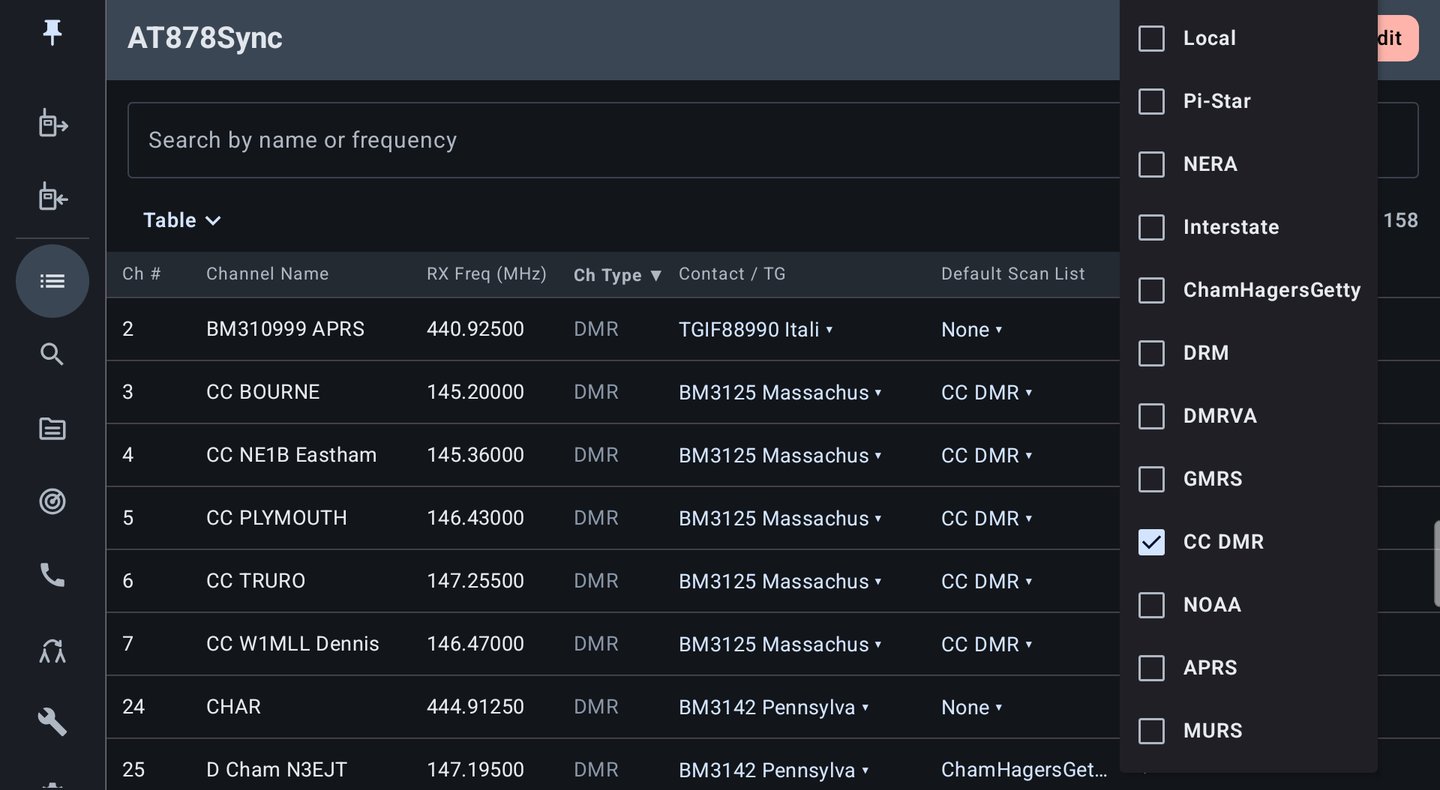
Your whole channel list in one table. Pick the columns you care about, tap a header to sort, and search by name or frequency. Only want your DMR channels, or just one zone? Filter down to them. On a phone, flip to a simpler list that fits the screen.

  • Change a talkgroup, scan list, or zone right in the table
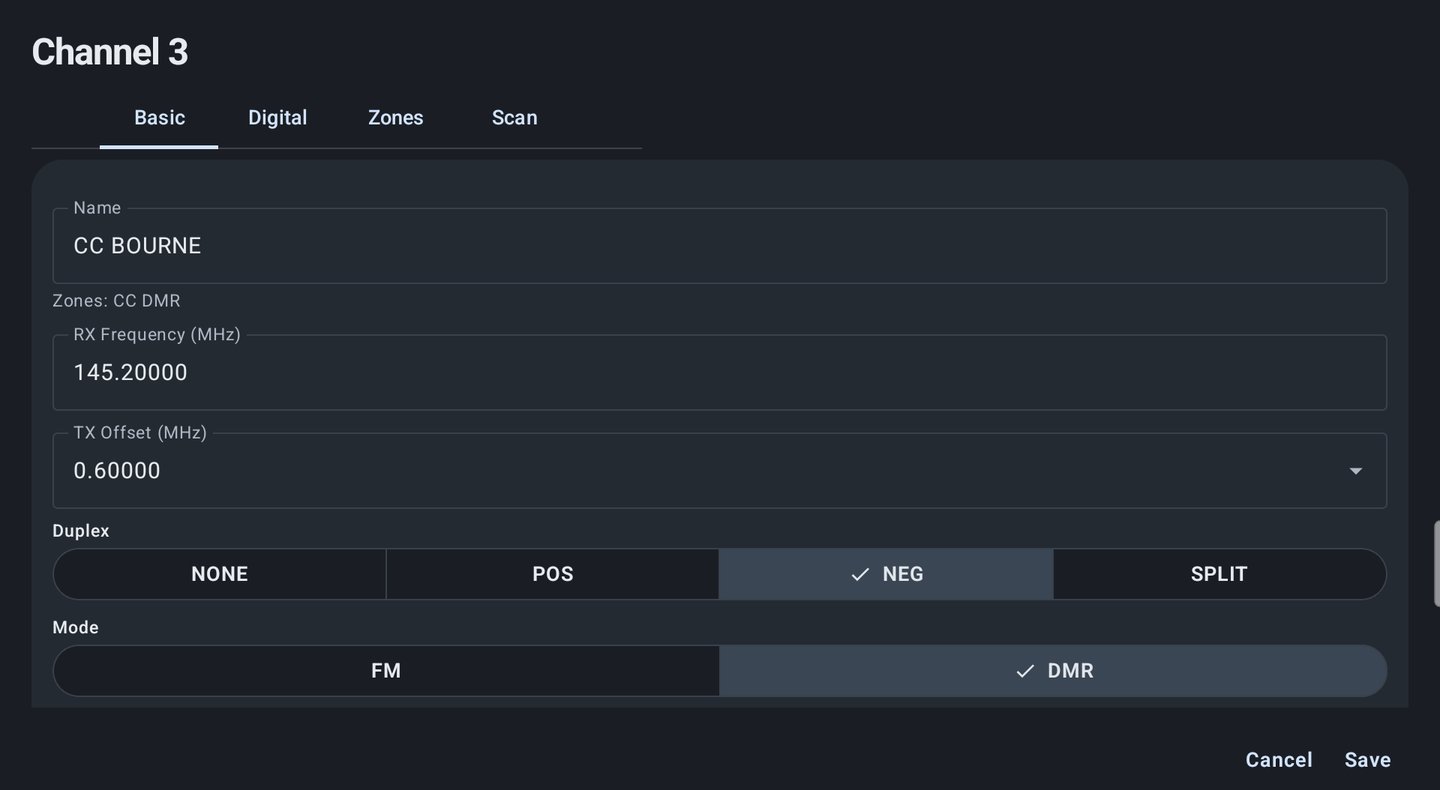
  • Tap a row to open the full channel editor
  • Your changes are marked Unsaved and stay on your device until you Write them
AT878Sync channel table on a tablet, with number, name, frequency, type, talkgroup, default scan list and zones columns
Zones checklist opened from a channel's Zones cell in the table Channel editor with Basic, Digital, Zones and Scan tabs
Talkgroups

Talkgroups by name, not by number

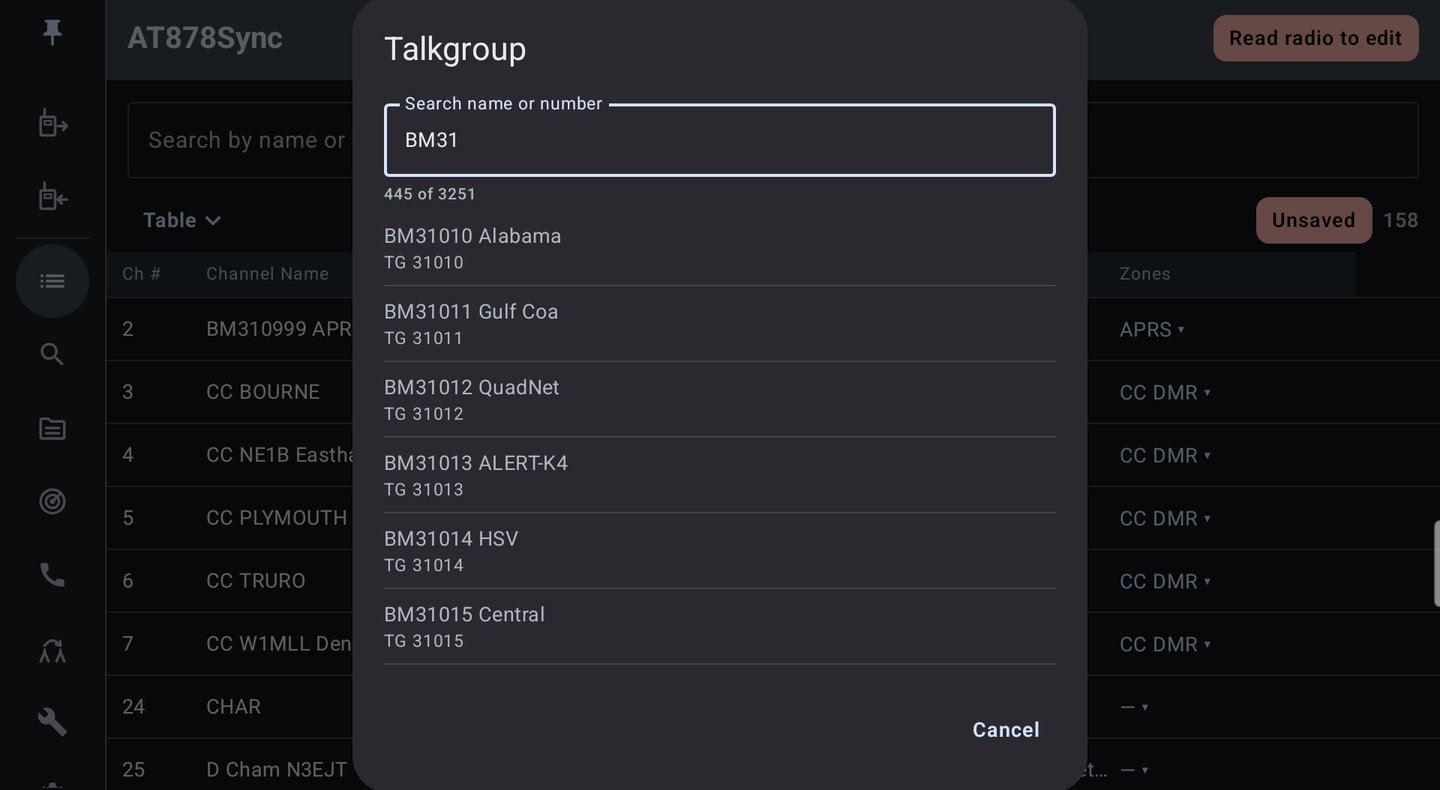
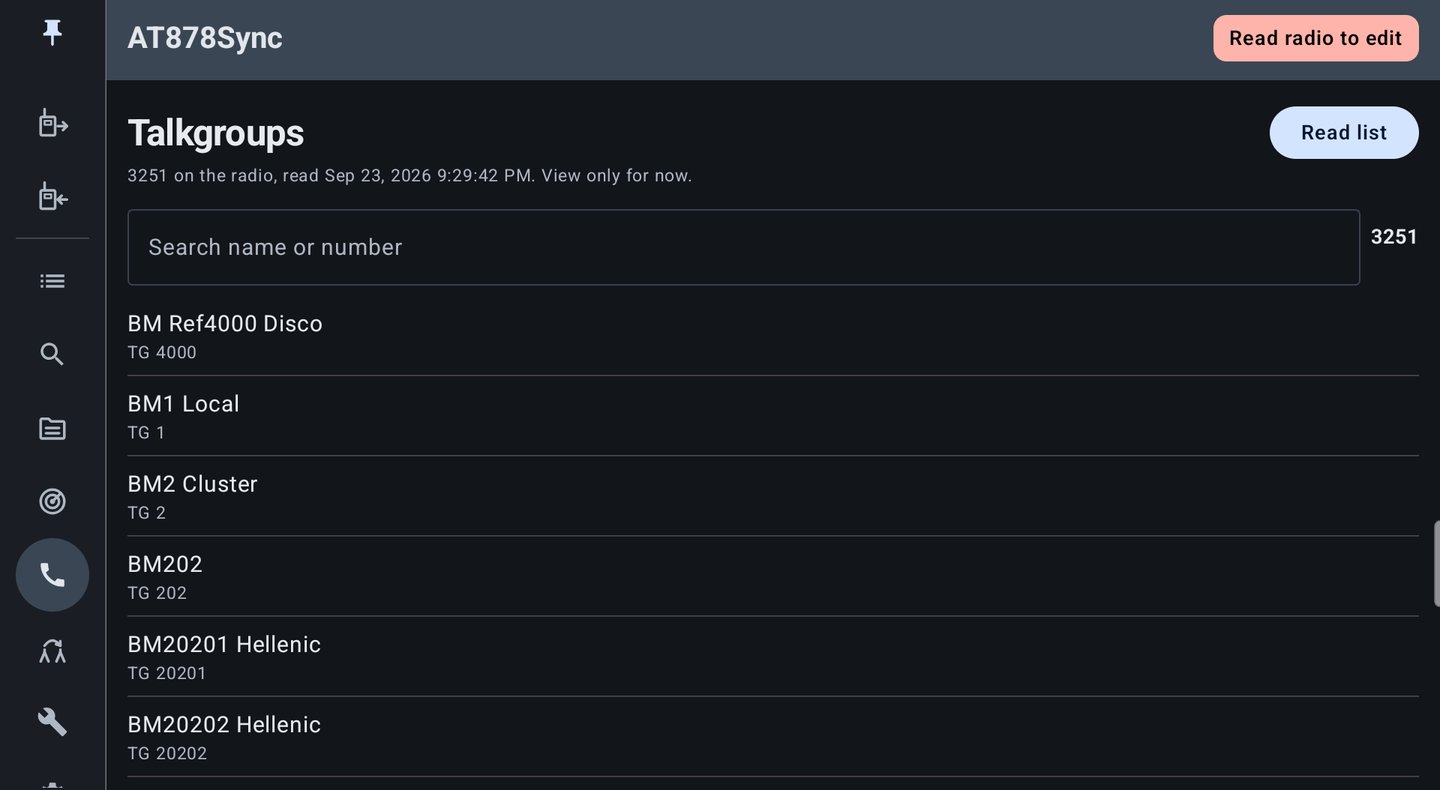
Nobody wants to remember which number goes with which talkgroup. AT878Sync pulls your whole talkgroup list off the radio, even if it runs into the thousands, and shows each one by name. To switch, start typing a name or number and tap the one you want.

For now you can look at your talkgroups but not change them. Adding, renaming, and deleting them is on the list.
Searchable talkgroup picker filtered to BM31 Talkgroups screen listing the radio's talkgroups with search
Repeater Search

Found a repeater? Add it in seconds

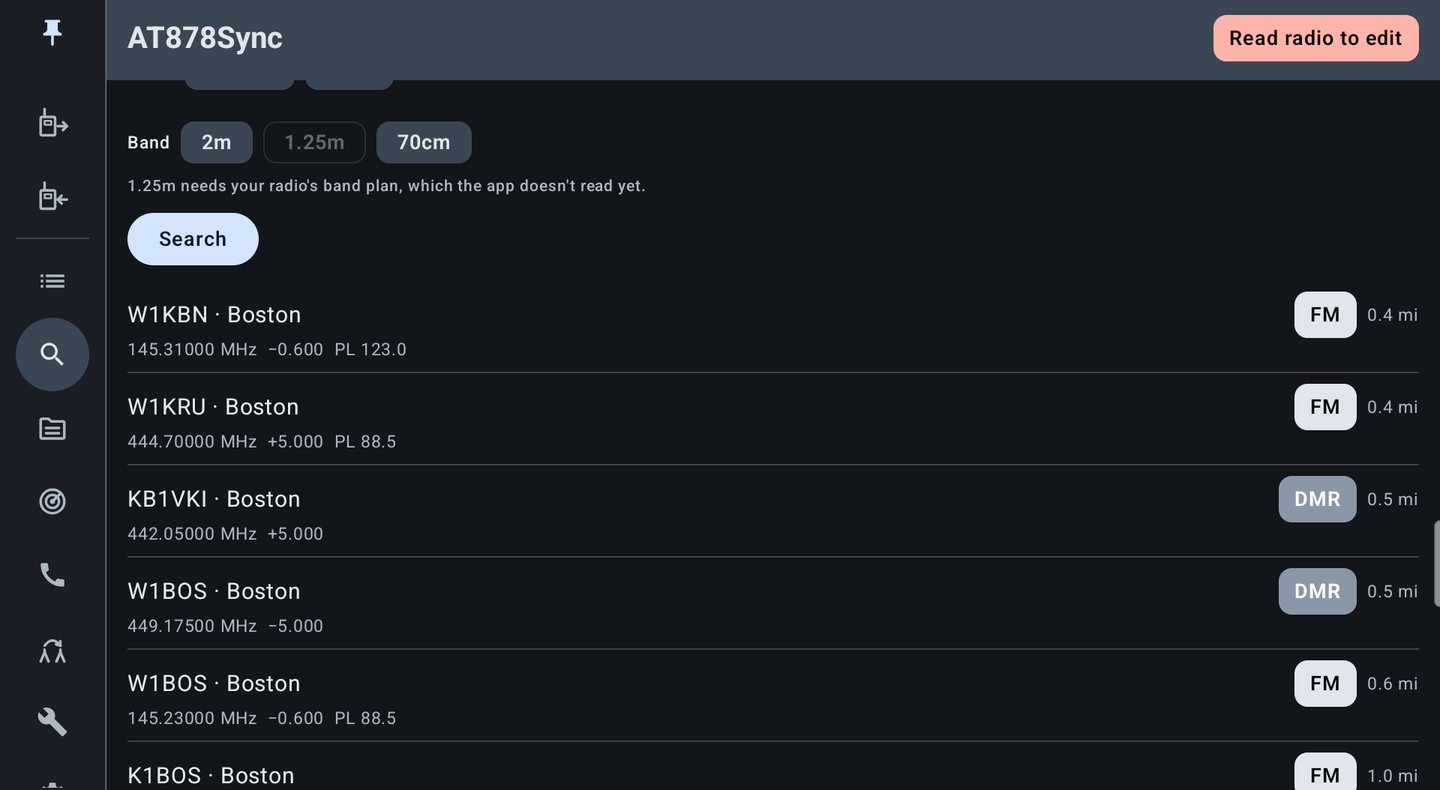
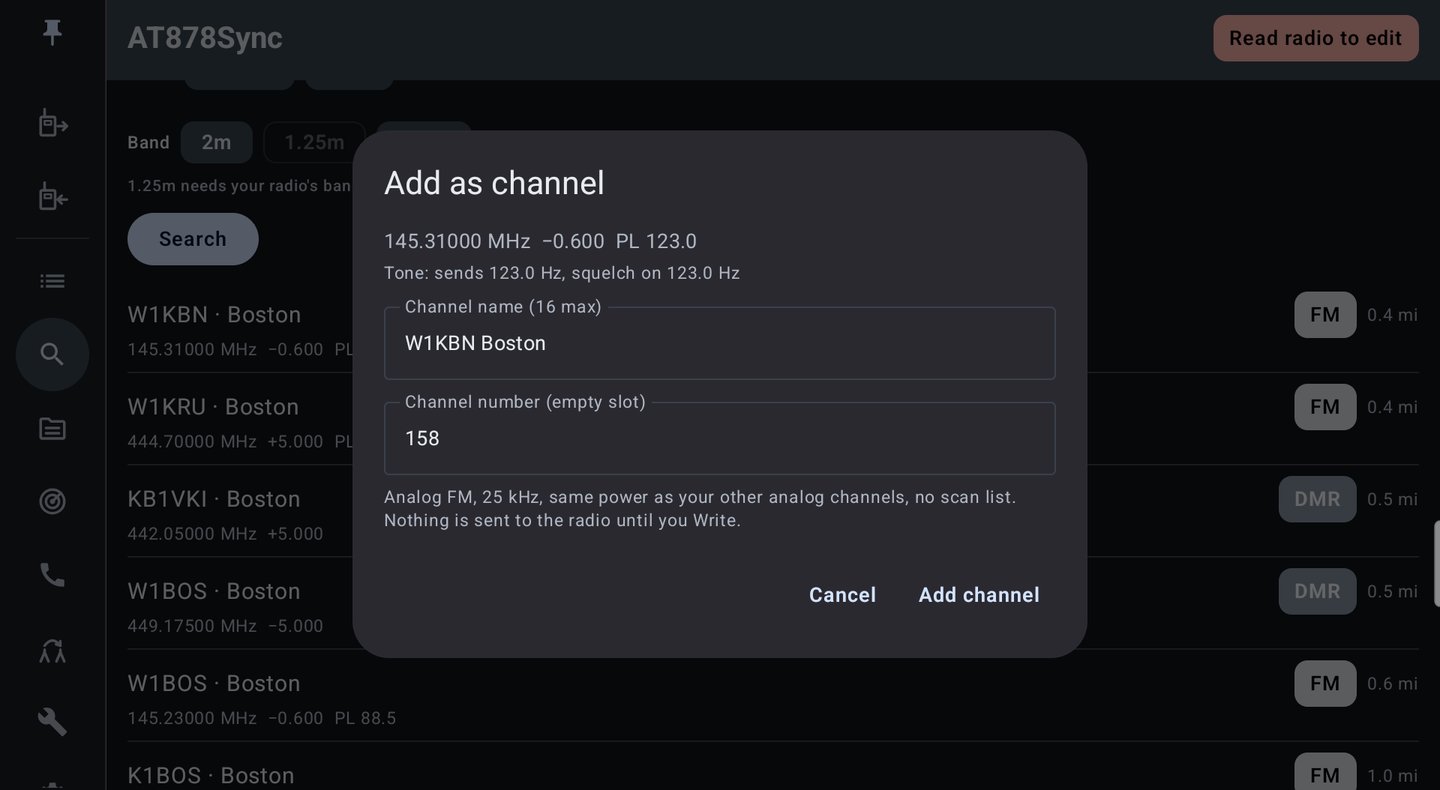
On the road, or just curious what's nearby? Search RepeaterBook around where you are, or type in a town or ZIP code. Pick 10, 25, or 50 miles, analog or DMR, and you'll only see repeaters your radio can actually use. Tap one and AT878Sync fills in the frequency, offset, and tone, suggests a name, and finds an open channel slot for it. Nothing goes online until you tap Search, and nothing goes to your radio until you Write.

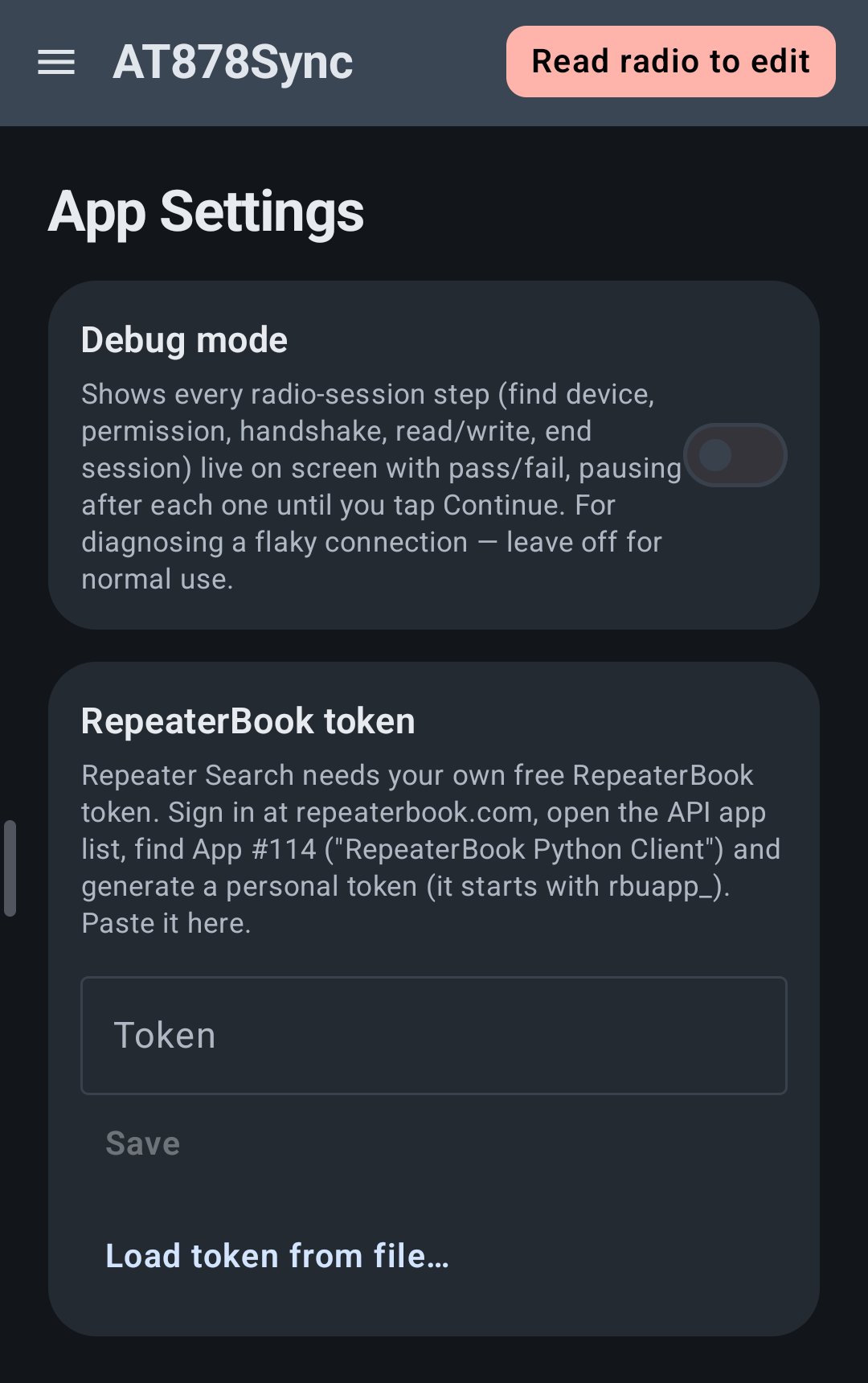
You'll need a free RepeaterBook token, which you enter once in App Settings. RadioReference isn't supported yet.
RepeaterBook search results near Boston showing callsign, frequency, offset, tone, mode and distance Add as channel dialog with a suggested name and empty channel slot
Zones, Scan Lists & Roaming

More than just channels

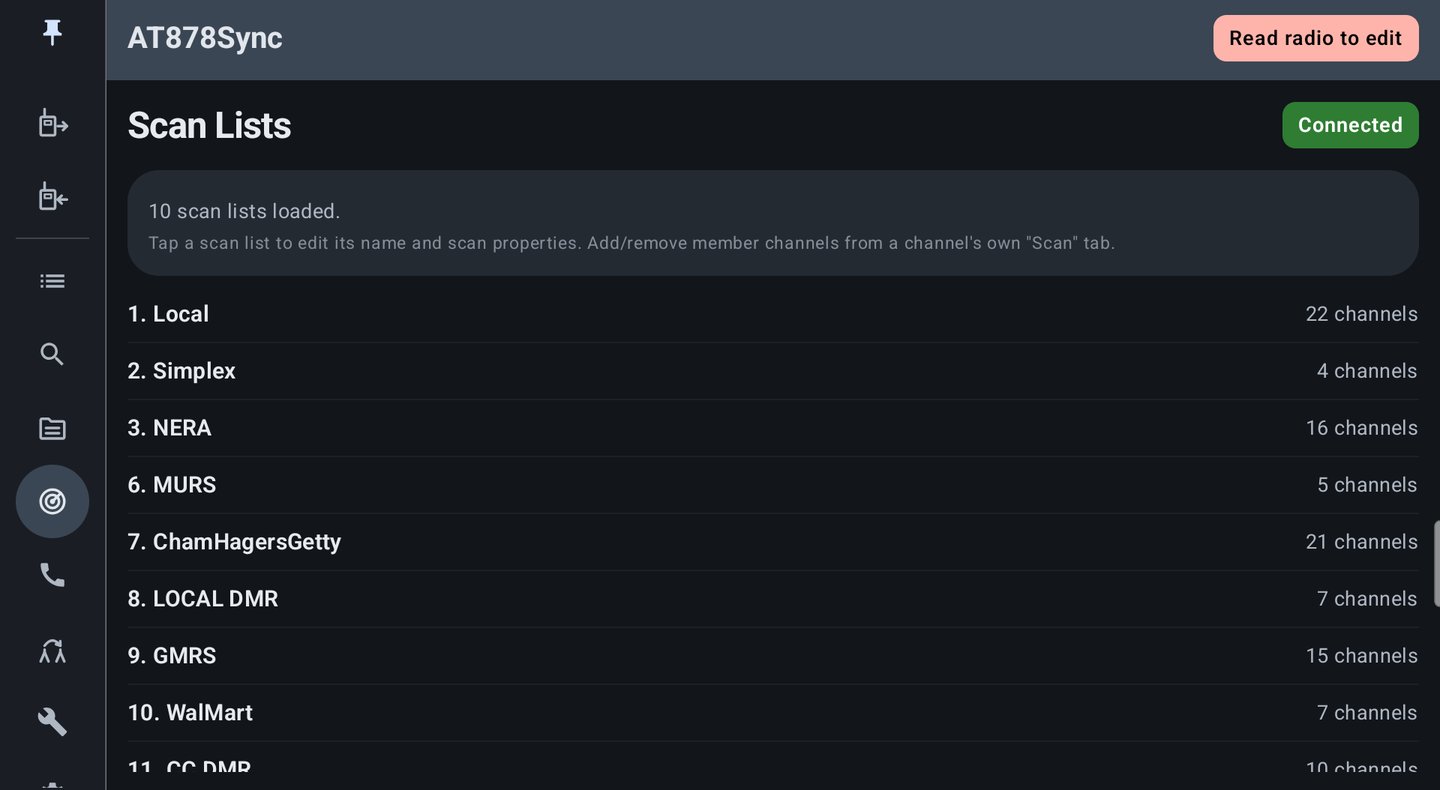
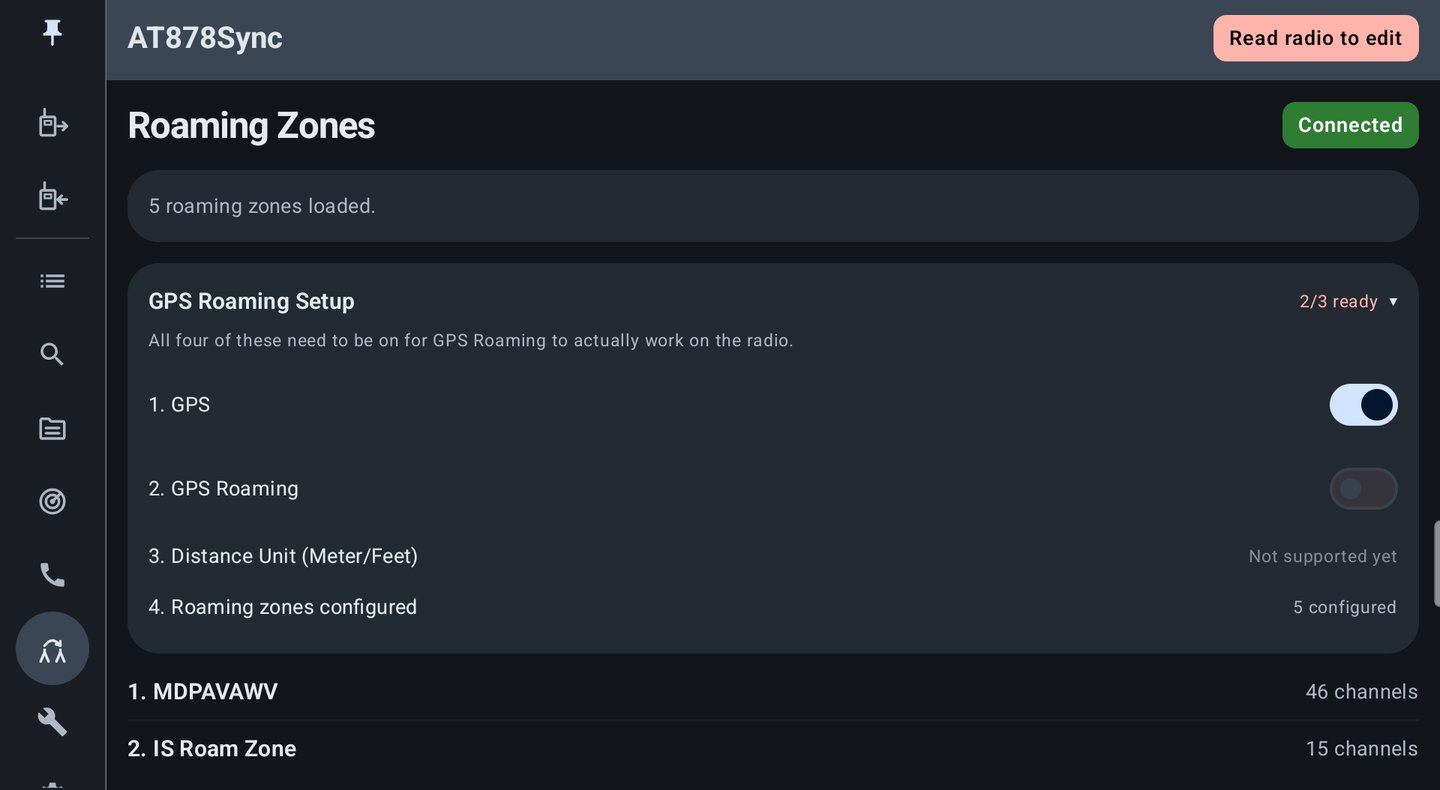
Your zones and scan lists show up by name, with how many channels are in each, and any changes go back to the radio along with your channels. Roaming channels and zones come in too. If you're setting up GPS roaming, there's a checklist that shows which radio settings are already on and which still need turning on.

Scan Lists screen showing each list's name and channel count Roaming Zones screen with the GPS Roaming Setup checklist expanded
Radio Settings

Your radio settings, right where you'd expect

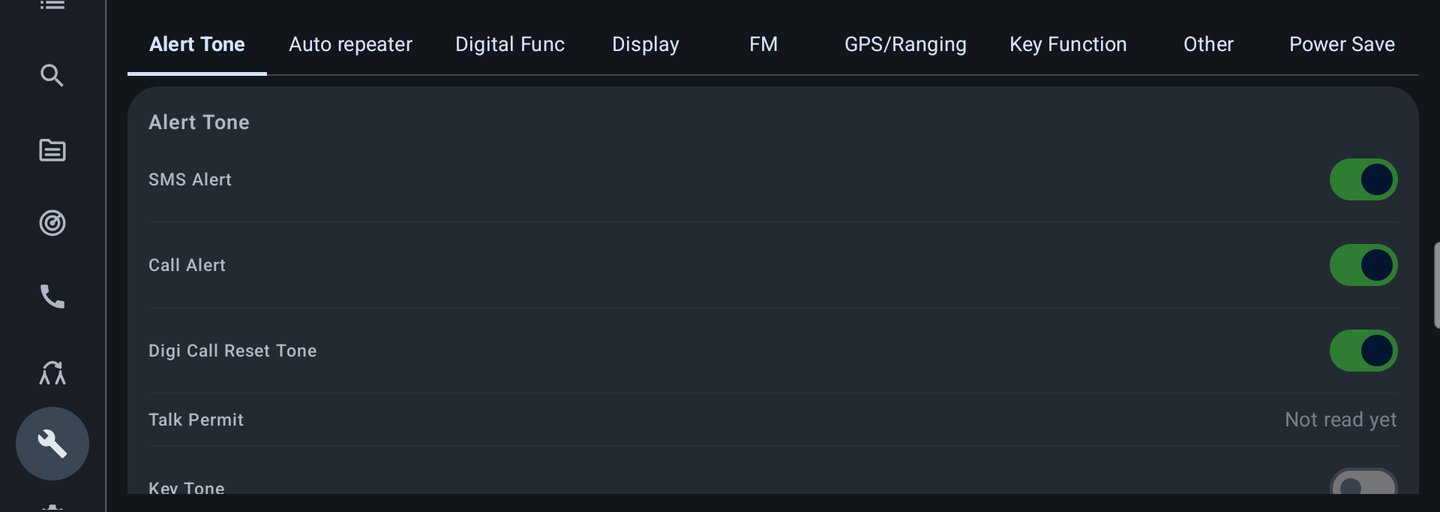
If you've used the AnyTone CPS, this will feel familiar. The radio's settings are laid out in the same tabs, showing what's actually set on your radio right now, with the same kinds of switches and dropdowns.

You can see all your settings today. Sending setting changes back to the radio isn't done yet, so changes here won't reach the radio for now.
Radio Settings screen with CPS-style tabs and switches
Peace of Mind

Your radio only changes when you say so

You always start by reading your radio, so you're working from what's really on it. Nothing gets sent back until you tap Write and say yes. And if the app closes before you're done, your edits will still be there when you come back.

Phone & Tablet

At home on your phone or tablet

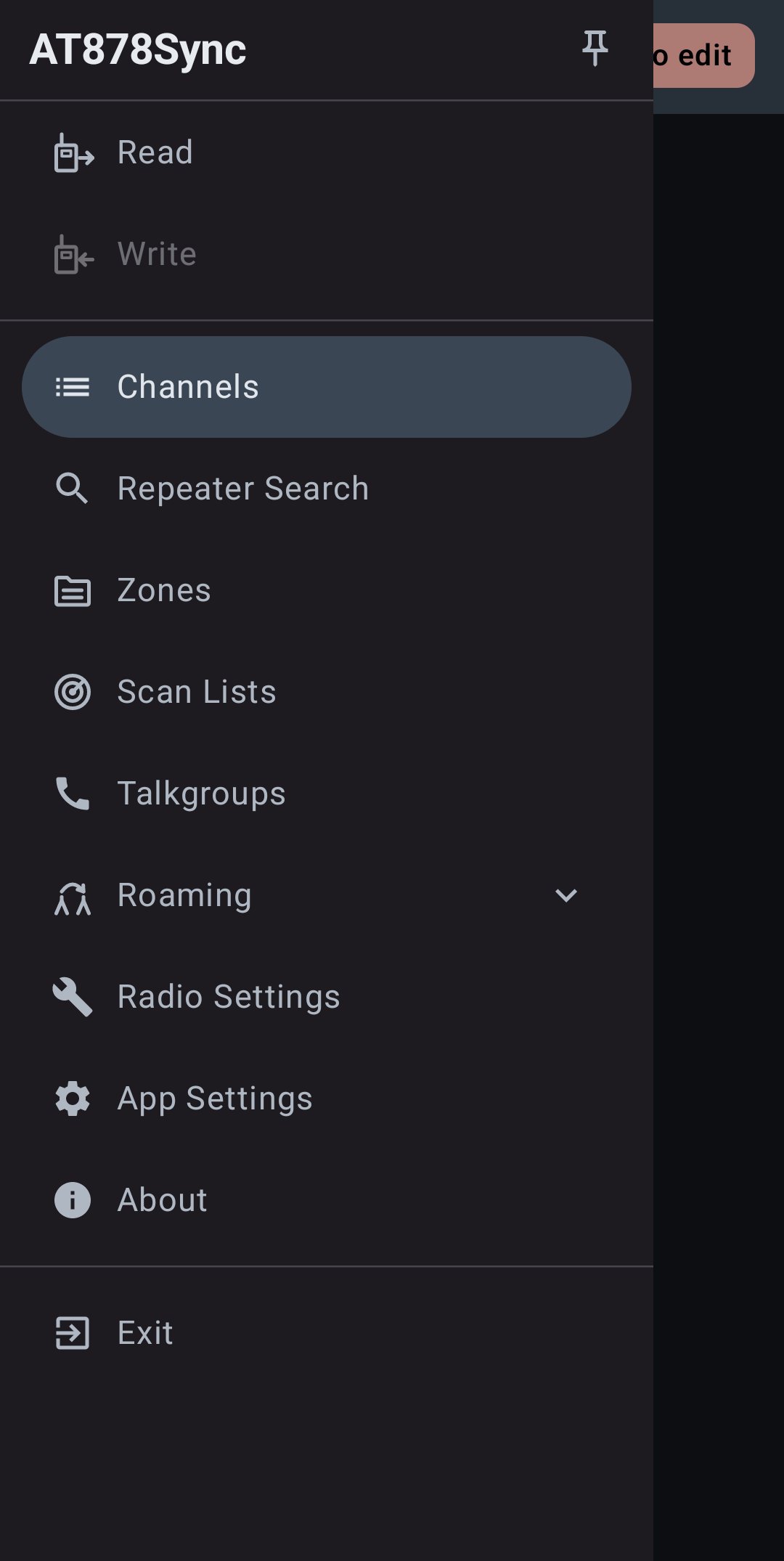
On a tablet you get the big picture: a menu down the side and your channels in a full table. On a phone, everything is tucked into a menu that slides out when you need it. There's a dark theme for late nights, and I've tested it on a real phone and tablet, not just a simulator.

AT878Sync slide-out menu on a phone App Settings on a phone with the RepeaterBook token instructions

About AT878Sync

You'll need an AnyTone AT-878 and its USB programming cable. AT878Sync isn't out yet. I want to get the AT-878 completely right before adding other radios or releasing it.

Privacy Policy