N7500 Dashboard app icon

N7500 Dashboard

Full radio control and channel programming for the VGC/Vero VR-N7500 and its Benshi-protocol siblings — straight from your phone over Bluetooth, no cable required.

On-device only, no cloud Built for ham radio operators 15-day free trial
Coming soon to Google Play — closed testing is done and it's awaiting production approval. Every screenshot on this page is from the real app with a real VR-N7500's channels — this tracks what's actually done, not a roadmap.

These are headless, phone-controlled radios — no keypad, no display, no way to program a channel without an app. N7500 Dashboard is that app: connect over Bluetooth, and every part of the radio's live state and stored channel memory shows up on your phone in real time, editable right there, with a real confirmation step standing between an edit and anything actually sent to the radio.

Built and tested against
Vero VR-N7500
Connect

Only your radio, not every earbud in range

The connect screen starts scanning on its own and lists only devices it knows are radios — radios already paired with your phone first, then any nearby. Earbuds, car stereos, and watches stay out of the way. If yours isn't listed, one tap on "Not listed?" shows everything nearby.

  • Reconnects to your radio on its own the next time it's in range
  • Three short steps instead of a wall of instructions, and a plain explanation before Android asks for Bluetooth or location access
  • No radio handy? "Use offline" lets you browse and edit your last-known channels and settings anyway
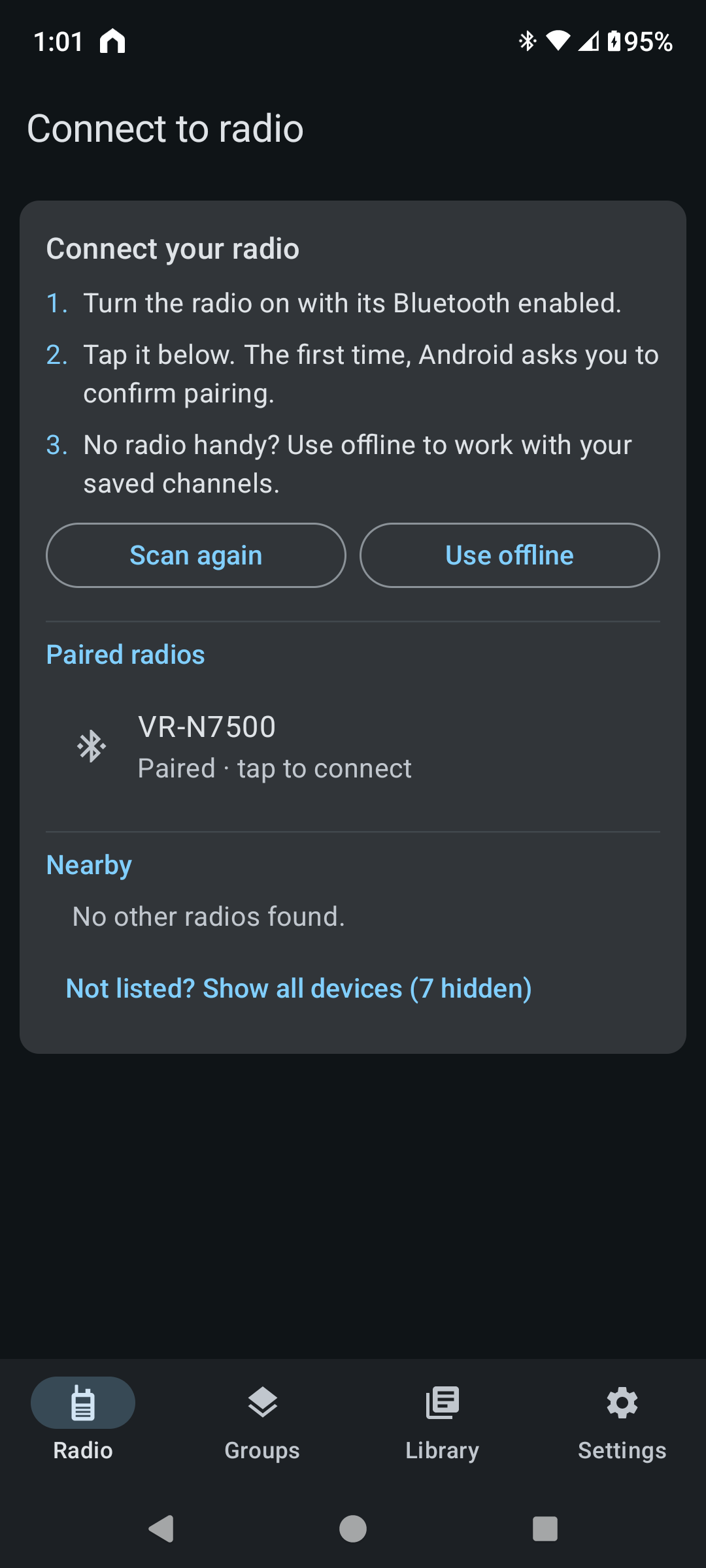
N7500 Dashboard connect screen with numbered steps, the paired VR-N7500 listed first, and a Not listed? Show all devices (7 hidden) button
Dashboard

Everything live, one screen

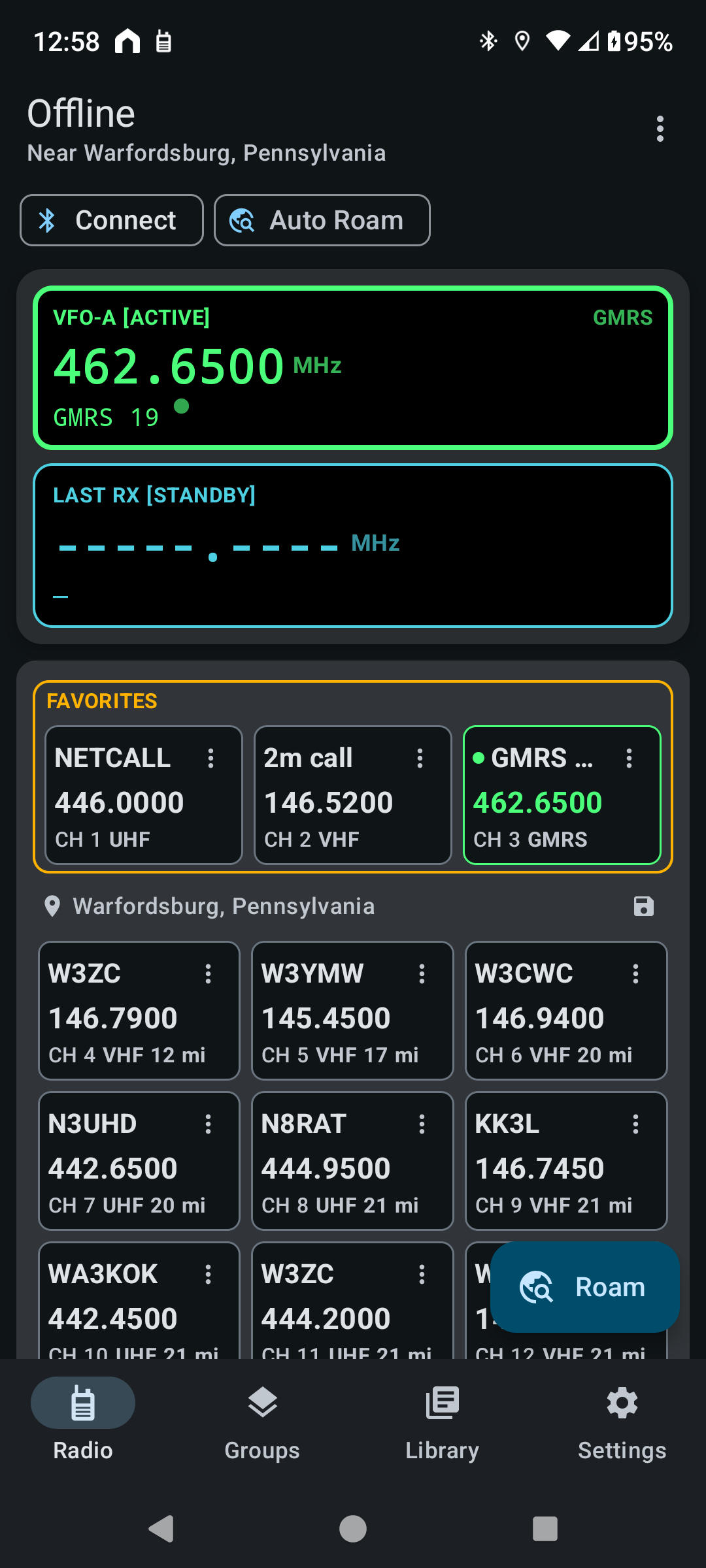
Frequency, mode, signal strength, squelch, TX power, and Work Mode (Single/Dual/Scan) — all synced from the radio in real time, not just read once at connect. A row of labeled buttons across the top is both the status and the control: tap Power to step High → Med → Low, tap Mode to step Single → Dual → Scan. A squelch slider sits right on the S-meter: hold for half a second to unlock it, then drag — a deliberate "lock" so it can't move by accident.

  • Slot A/B channel tiles colored to match the VFO display, so what's active and what's standby is obvious at a glance
  • Live TX/RX glow on whichever channel is actually keyed up or receiving
  • Every channel and both VFO slots show their band — VHF, UHF, GMRS, MURS, and more — so you know what you're on without doing the math
  • Each Roam channel shows how far away its repeater is, updating as you drive — with a green ↓ while you're getting closer
  • A standard Android layout: a bottom bar on phones, Back works everywhere, and messages with Undo when you remove something
N7500 Dashboard Radio screen in dark mode with the VFO display, Connect and Auto Roam buttons, and channel tiles showing distance to each repeater
Light & Dark

Readable in the sun, easy on the eyes at night

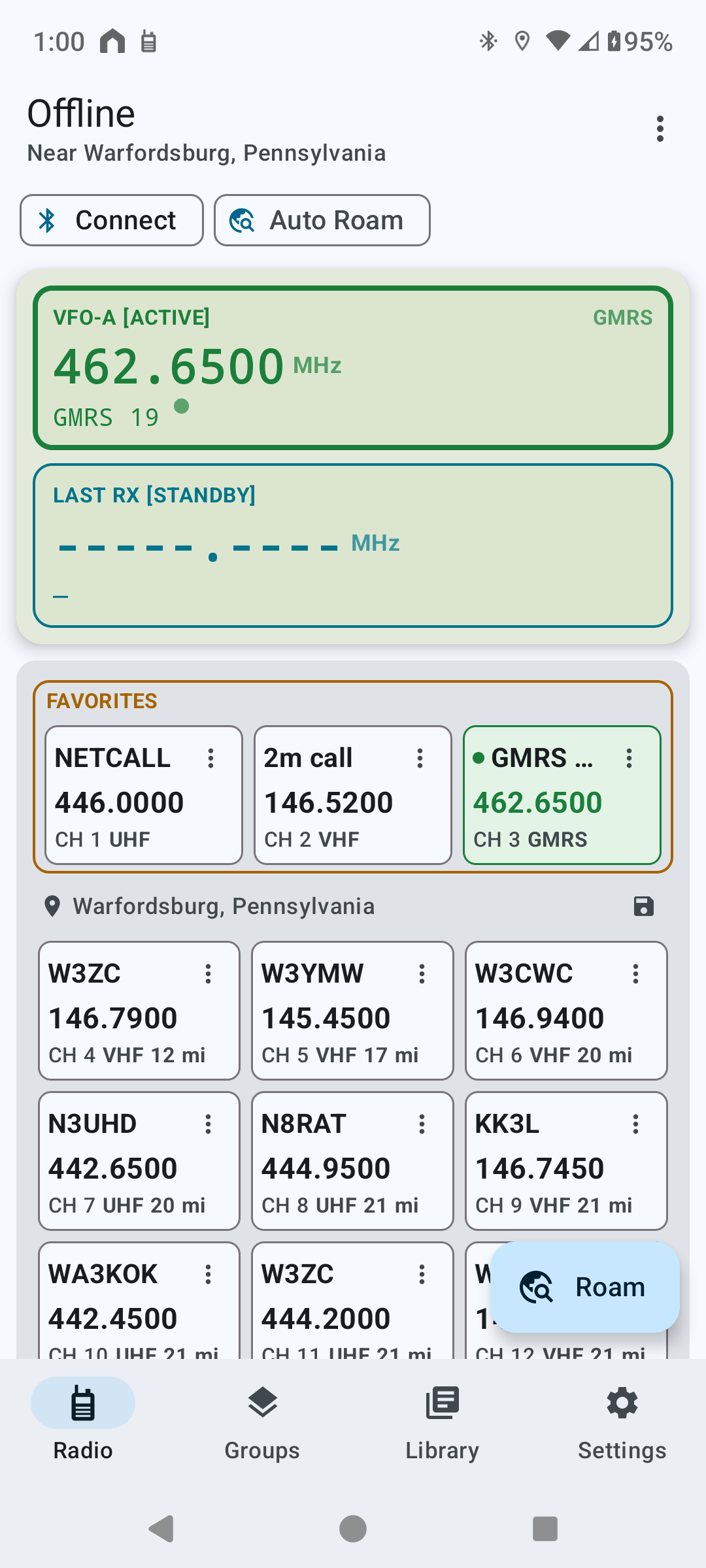
Pick Light, Dark, or follow your phone (Settings → Theme). In dark mode the radio display glows like a night-lit LCD; in light mode it switches to a daylight LCD — dark digits on a pale backlight, with colors chosen to stay readable in bright sun. On Android 12 and later the rest of the app picks up your phone's own colors.

N7500 Dashboard Radio screen in light mode with a pale green daylight-LCD VFO display and light channel tiles
Phone or Tablet

Uses the whole screen on a tablet

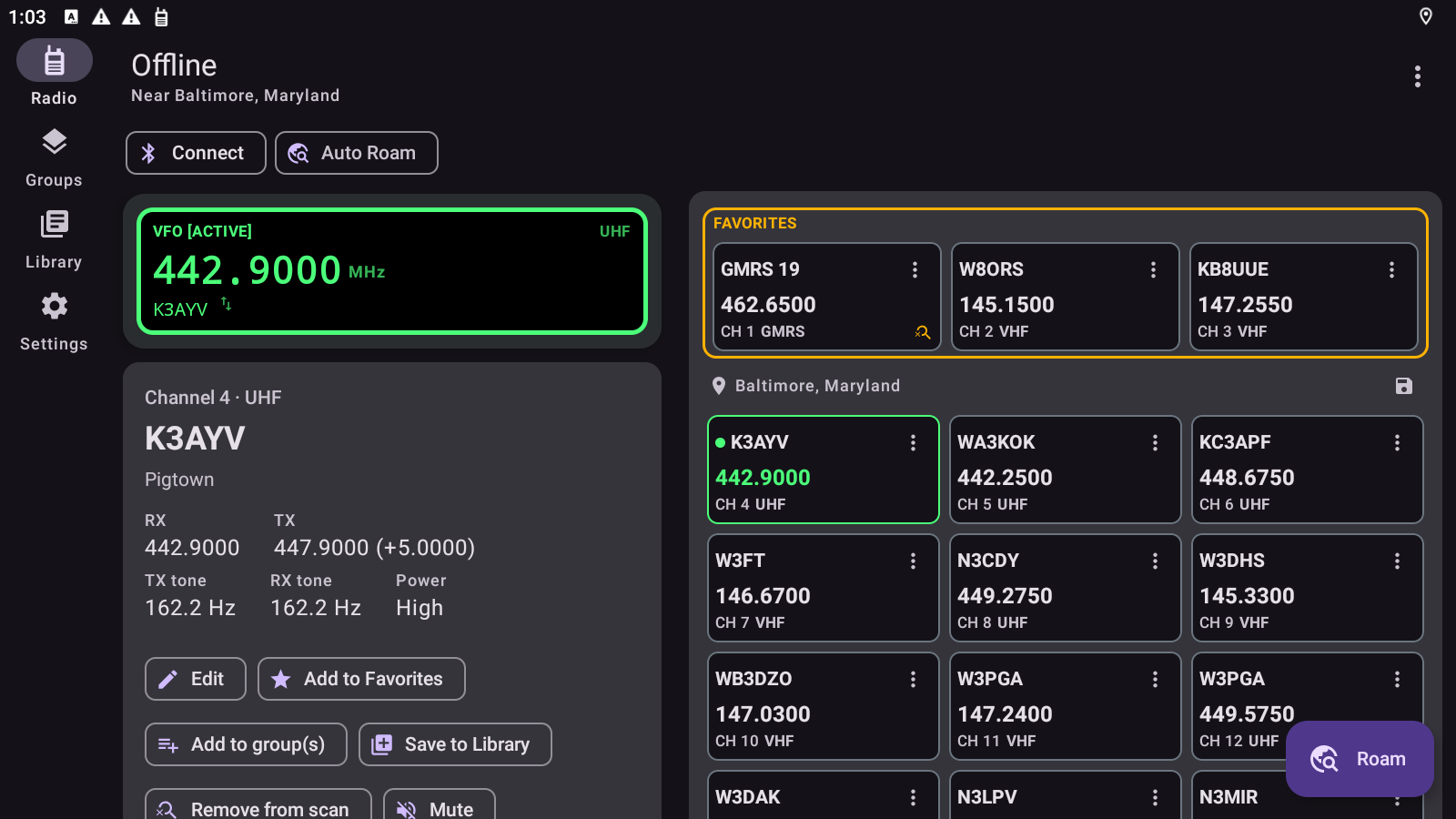
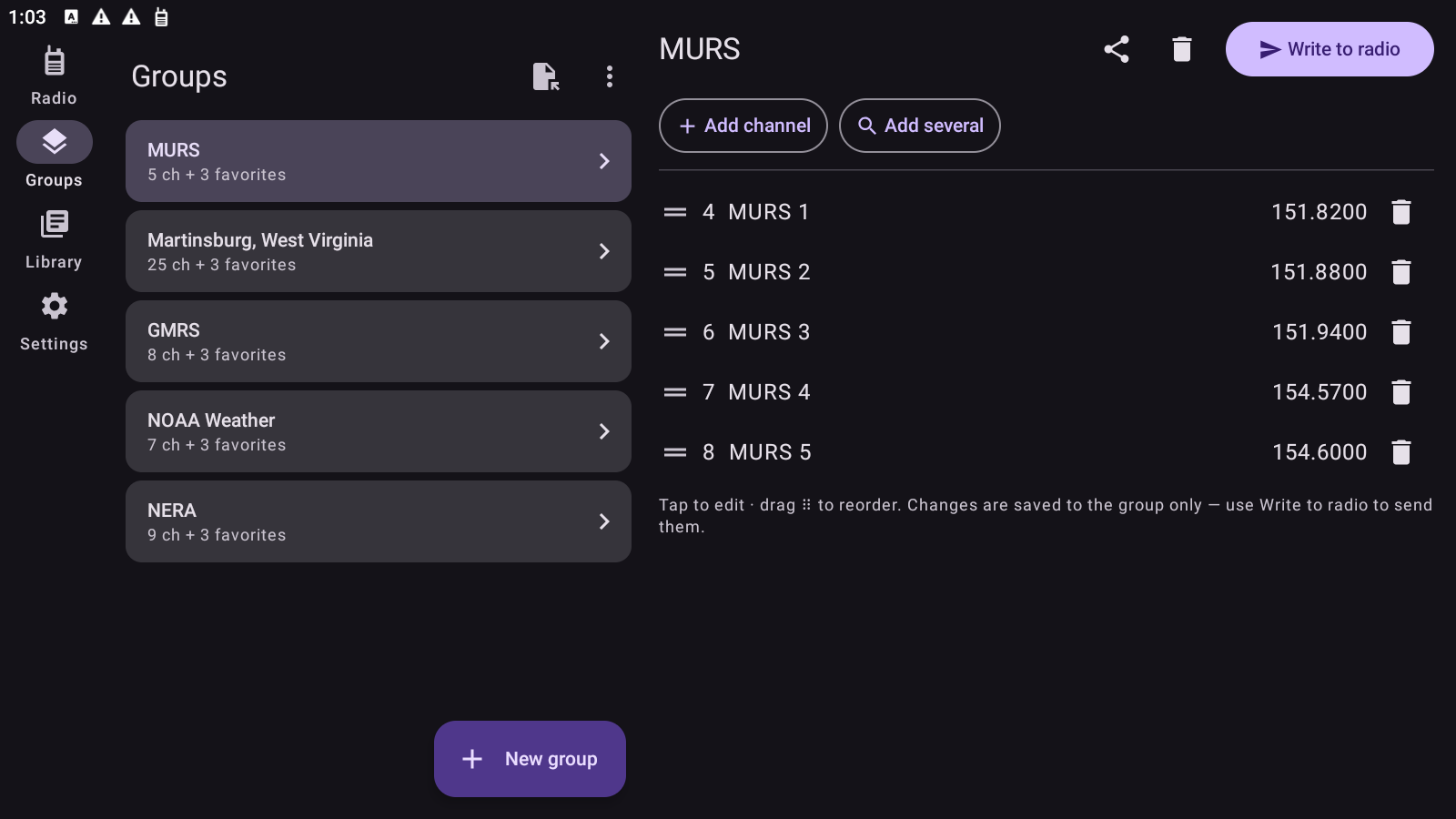
On a tablet the navigation moves to a side rail and screens split into two panes: the tuned channel's details and actions sit under the VFO display, and a group's channels open beside the list of groups.

N7500 Dashboard on a tablet in landscape: VFO display with the tuned channel's details and actions on the left, channel grid on the right N7500 Dashboard Groups on a tablet in landscape: list of groups on the left, the MURS group's channels and Write to radio on the right
Floating Window

Slot A and B, even when you leave the app

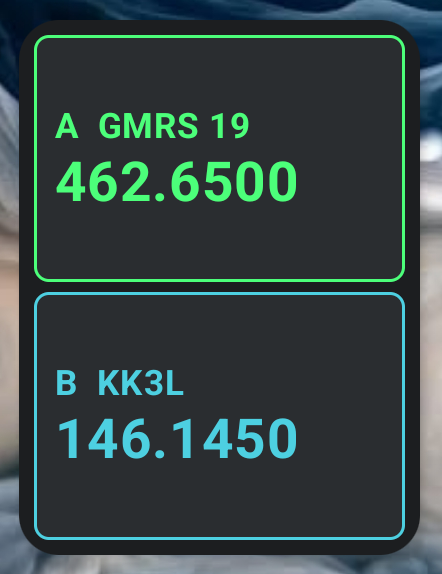
Switch to maps or anything else and a small floating window keeps both slots in view — the active channel on top, the last one heard below, in the same colors as the dashboard. It only appears while a radio is connected, so it never clutters your screen for nothing.

  • Roam from a Quick Settings tile, a long-press on the app icon, or the home-screen widget
N7500 Dashboard's floating window over the home screen showing Slot A GMRS 19 462.6500 and Slot B KK3L 146.1450
Channel Editor

Every field the radio actually has

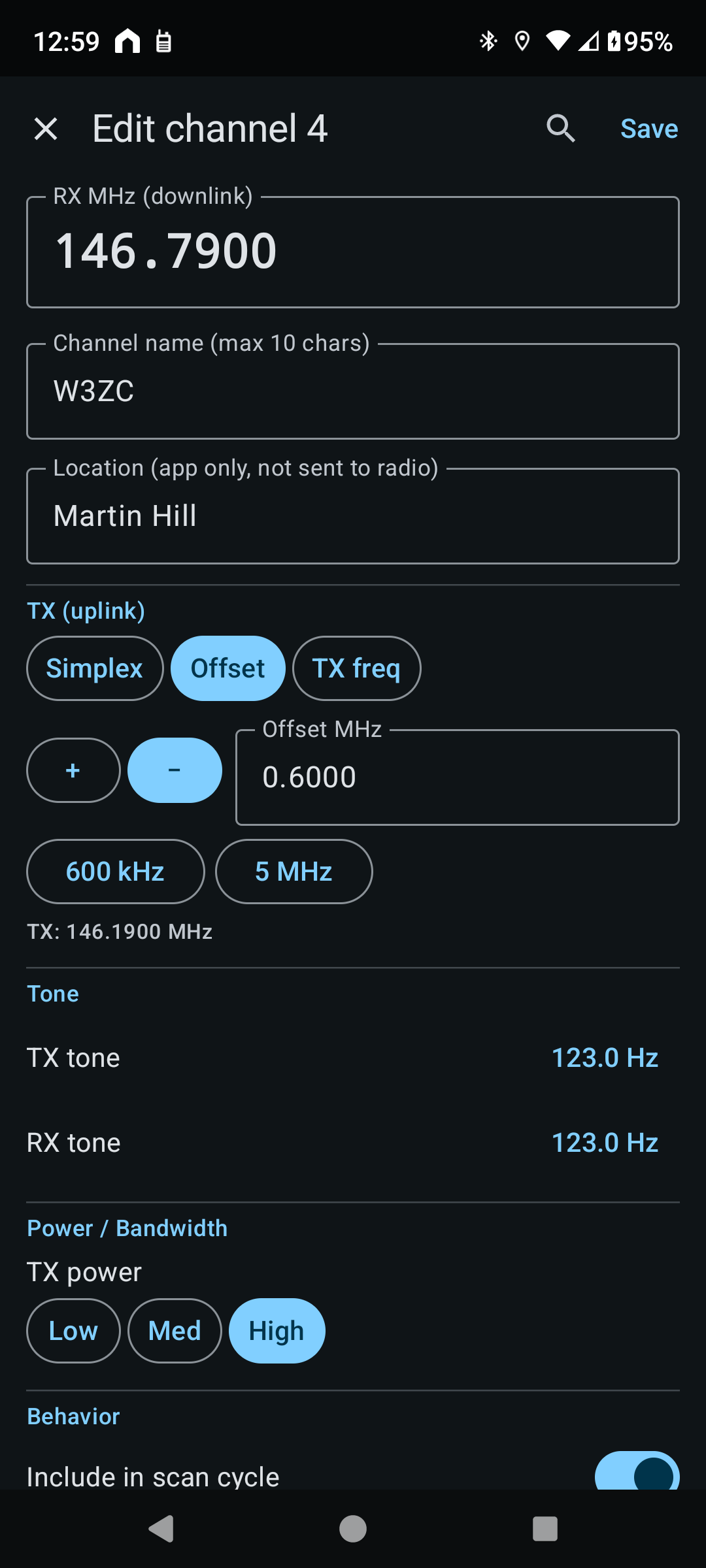
Enter the frequency you listen on, then transmit as simplex, an offset (one tap for 600 kHz or 5 MHz), or its own frequency. Name, CTCSS/DCS tone, TX power, scan membership, mute, and more — with rarely used settings folded under Advanced. On a phone it opens full screen with Save at the top. Fields are cross-checked against the vendor's own app so nothing here is guesswork.

  • An app-only "location" note per channel (never sent to the radio) for remembering what a repeater actually is
  • Add the channel to any number of Groups right from the editor
N7500 Dashboard's full-screen channel editor with RX frequency, name, location, offset, tones, and power
Channel Library & Search

Fill a channel without typing it in

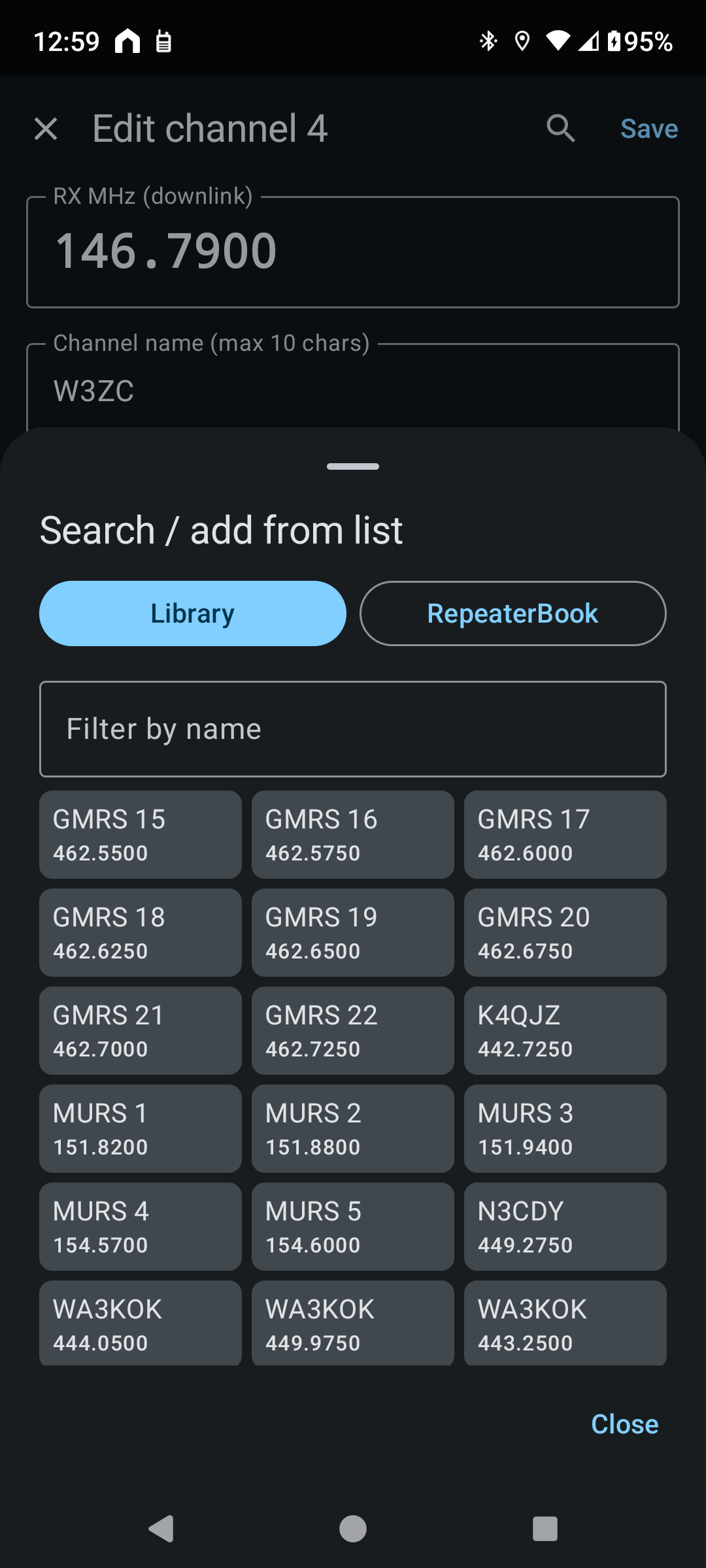
The search button in the channel editor pulls from two places: your Library of every channel you've saved, and RepeaterBook — nearby, around a city, state, or ZIP, or by name or club anywhere. When filling a Group you can pick several at once, up to the room the Group has left.

  • Picking a result only fills in the form — nothing is sent to the radio until you tap Save and confirm
  • The Library is one shared list of channels: a channel can be in several Groups, and editing it updates every Group that uses it
N7500 Dashboard's Search / add from list sheet showing Library and RepeaterBook tabs and saved channels in a grid
Safety

Never writes to your radio by accident

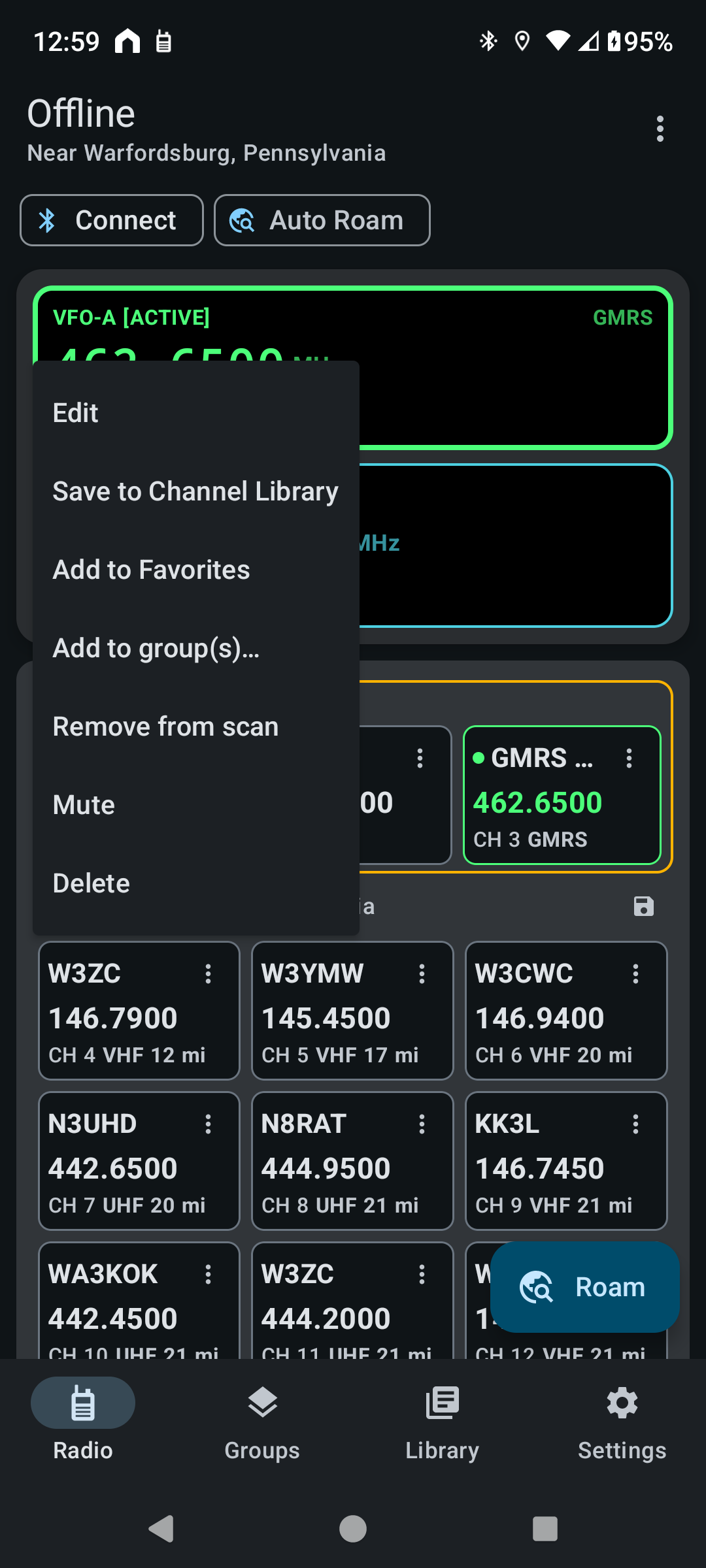
Any edit that rewrites the radio's stored channel memory shows a confirmation step first — always. Each channel's ⋮ button has quick actions: Edit, Add to Favorites or Groups, Delete, and two that are deliberately instant (Scan on/off and Mute) because they're single-field toggles a driver needs to flip without stopping to confirm every time.

  • Long-press to select several channels at once; changing them all on the radio still asks first
  • Removing a channel from a Group or the Library happens right away, with Undo — it never touches the radio
N7500 Dashboard's channel menu with Edit, Save to Channel Library, Add to Favorites, Add to group(s), Remove from scan, Mute, and Delete
Groups & Favorites

Save, load, and swap full channel sets

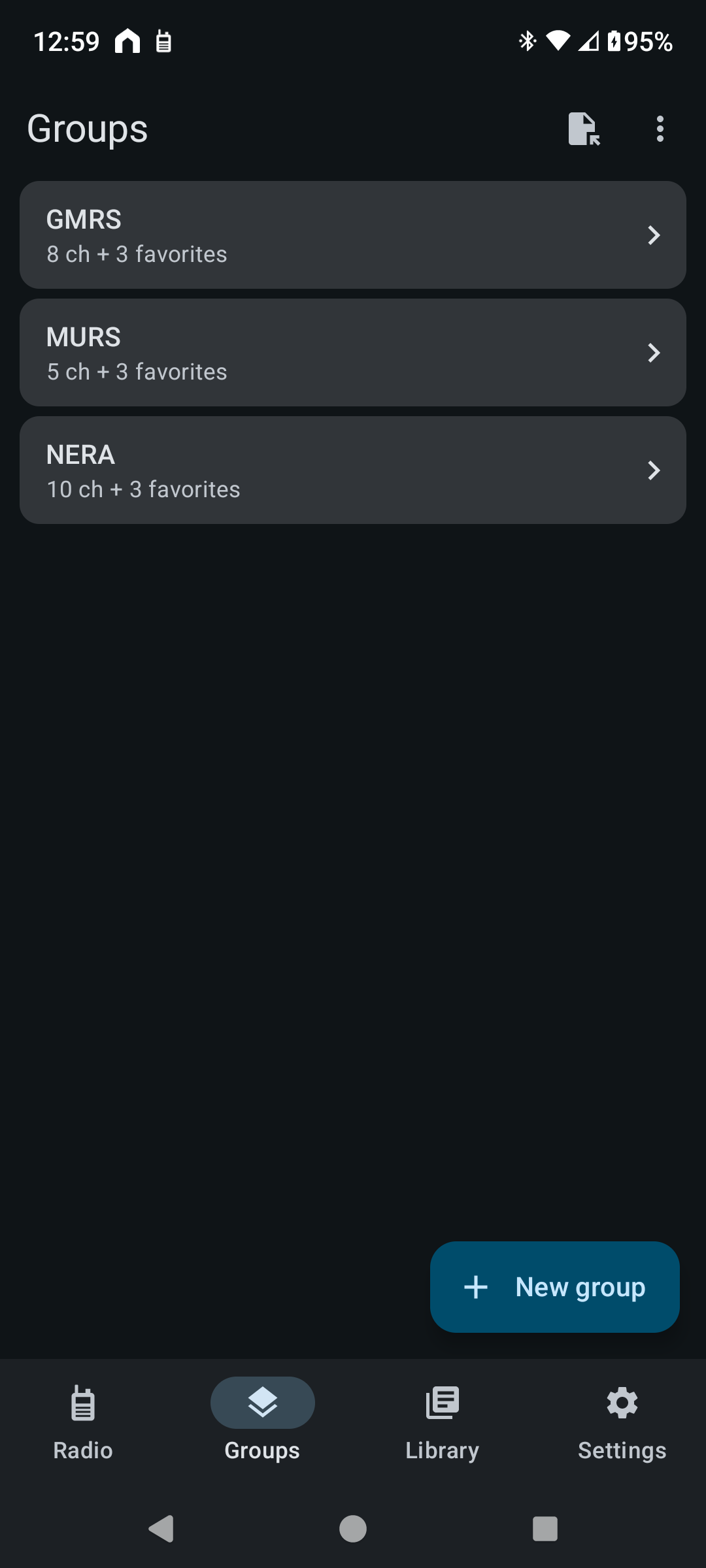
A Group is a saved, named 32-channel set — save what's currently loaded, or start fresh and build one from scratch. Built-in GMRS and MURS templates load the FCC's own band plan in one tap, at the correct power tier for each, and a NOAA Weather template adds the weather channels as receive-only. More built-in sets — Ham calling frequencies, ISS, Marine, Business Itinerant, and Public Safety — live under Settings → Built-in channels, ready to add to your Library or turn into a Group. Up to 3 Favorites stay pinned in every Group, so the channels you use most are never one load away from disappearing.

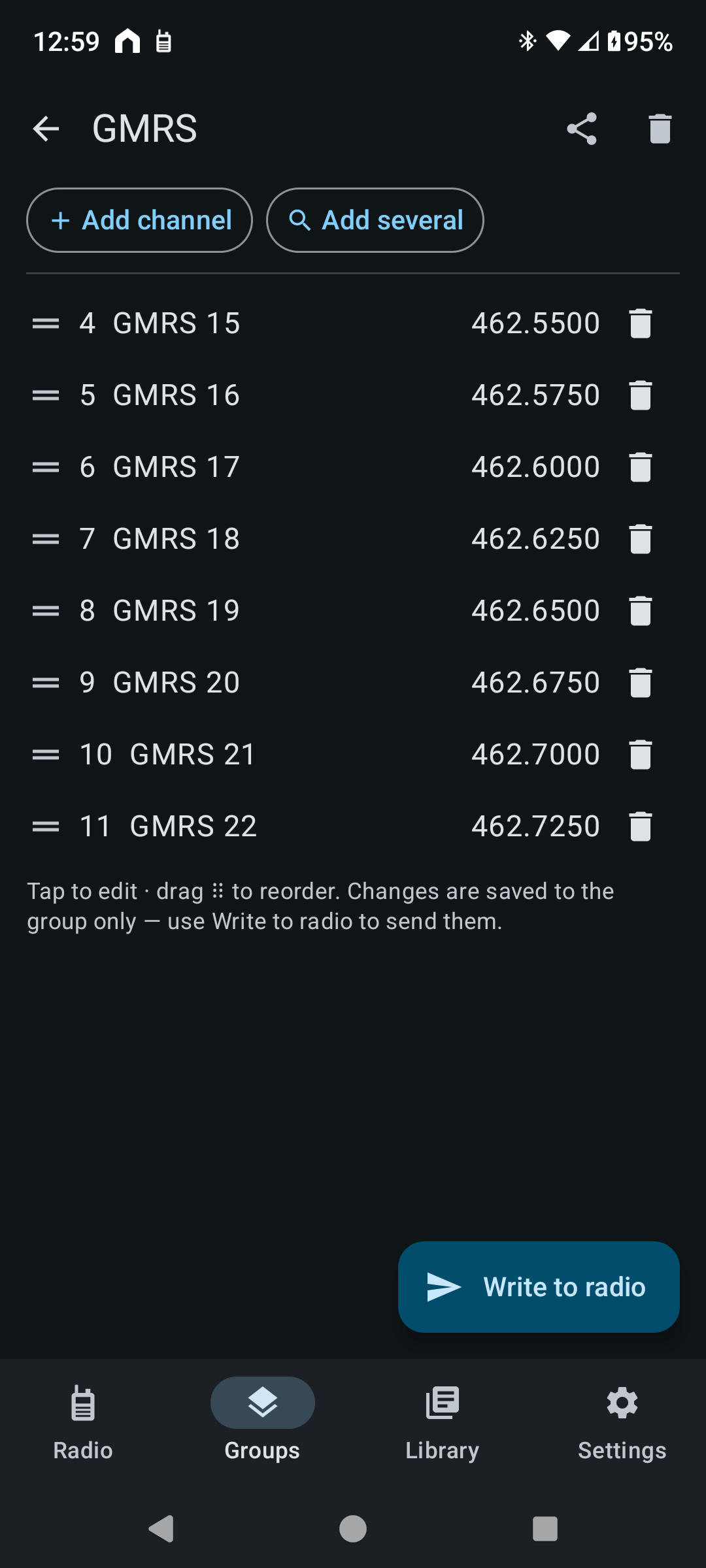
  • Open a Group to add channels, drag them into order, and write the whole set to the radio in one confirmed step
  • Adding a Favorite asks which of the 3 spots it goes in, showing what's already there, so you can swap or move them
  • Share a Group with another operator through Android's share menu — email, Messages, Drive, Bluetooth — and import one they sent you
N7500 Dashboard Groups screen with GMRS, MURS, and NERA groups and a New group button N7500 Dashboard's GMRS group open, with Add channel, Add several, draggable channels, and Write to radio
Roam

Find the nearest repeaters, wherever you are

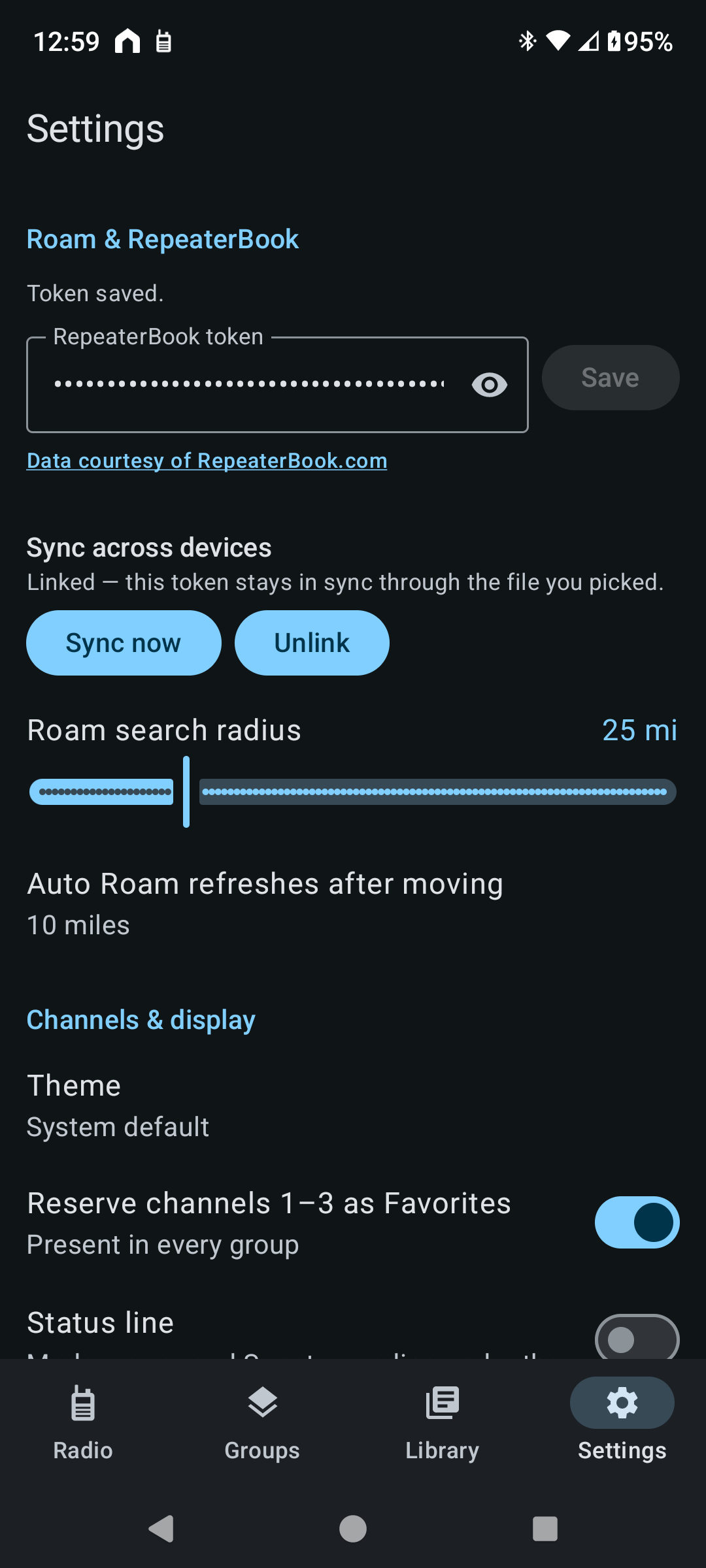
Roam pulls the closest repeaters from RepeaterBook based on your phone's actual location and loads them straight into the radio — see the fetch location right above the results, with a one-tap Save that names the new Group after that same place. Auto Roam keeps it fresh: turn it on and it re-fetches on its own once you've actually moved far enough (5, 10, 15, or 20 miles, your choice) to need new repeaters — not on a timer, on distance.

  • Roam is one button on the Radio screen, and it tells you up front if it needs your token or location access
  • Every Roam channel shows its distance from you, live as you drive
N7500 Dashboard Settings with the RepeaterBook token (hidden), Roam search radius, Auto Roam distance, and Theme
Getting Started with Roam

Get your own free RepeaterBook token

Roam needs your own personal RepeaterBook token — it's free, and takes under a minute:

  • Log into (or create) your account at repeaterbook.com/dashboard/index.php
  • Go to repeaterbook.com/user/api_apps.php — "API Apps & Tokens"
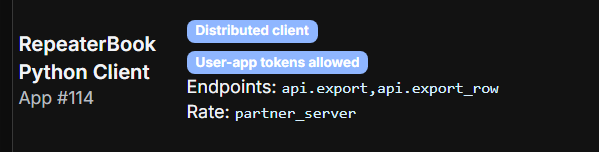
  • Find RepeaterBook Python Client (App #114) in the list of already- approved apps and generate a personal token under it — no separate app registration or approval wait needed, it's already set up for exactly this
  • Copy that token, then in N7500 Dashboard go to Settings → Roam & RepeaterBook, paste it into the token field, and tap Save
RepeaterBook's API Apps page showing the RepeaterBook Python Client, App #114, with Distributed client and User-app tokens allowed badges N7500 Dashboard's Settings page where the RepeaterBook token gets pasted in
Backup

Your channels survive a new phone

Link a backup file once in Settings and the app keeps it up to date on its own — your Library, Groups, Favorites, settings, and RepeaterBook token, all in one file. Put it in Drive or anywhere you like, and restore it on a new phone in one step.

Get N7500 Dashboard

N7500 Dashboard requires a VGC/Vero VR-N7500 — or a radio in the same Benshi Bluetooth protocol family (Vero VR-N7600/VR-N75/VR-N76, BTECH UV-Pro/UV-50PRO/GMRS-Pro, Radioddity DB50-B/GA-5WB, Retevis RT99/RT78, Radtel RT-660/RN15) — to connect to.

Try it free for 15 days. After your trial, keep using it with a one-time lifetime purchase or a low-cost monthly subscription — whichever you prefer. Coming soon to Google Play — awaiting production approval.

Privacy Policy